

Follow these simple steps to set up the Unity app on your phone and start earning rewards with your Ekata Nodes lease code.
Android or iOS device
Received from Ekata Nodes
Download from your app store
Follow each step to activate your leased license and start earning
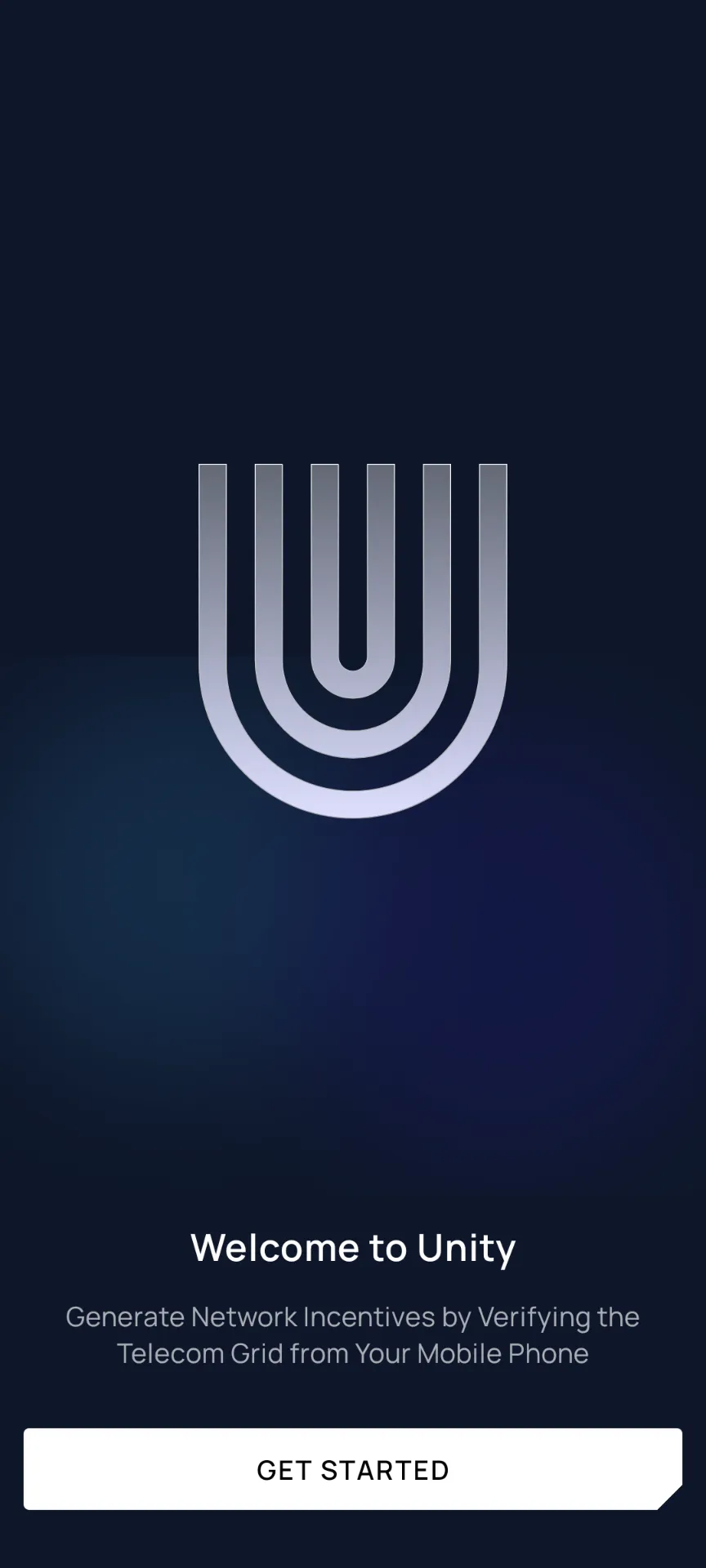
Launch the Unity Network app on your smartphone. You'll see the welcome screen with the Unity logo. Tap the GET STARTED button to begin the setup process.
Make sure you have a stable internet connection before starting the setup.
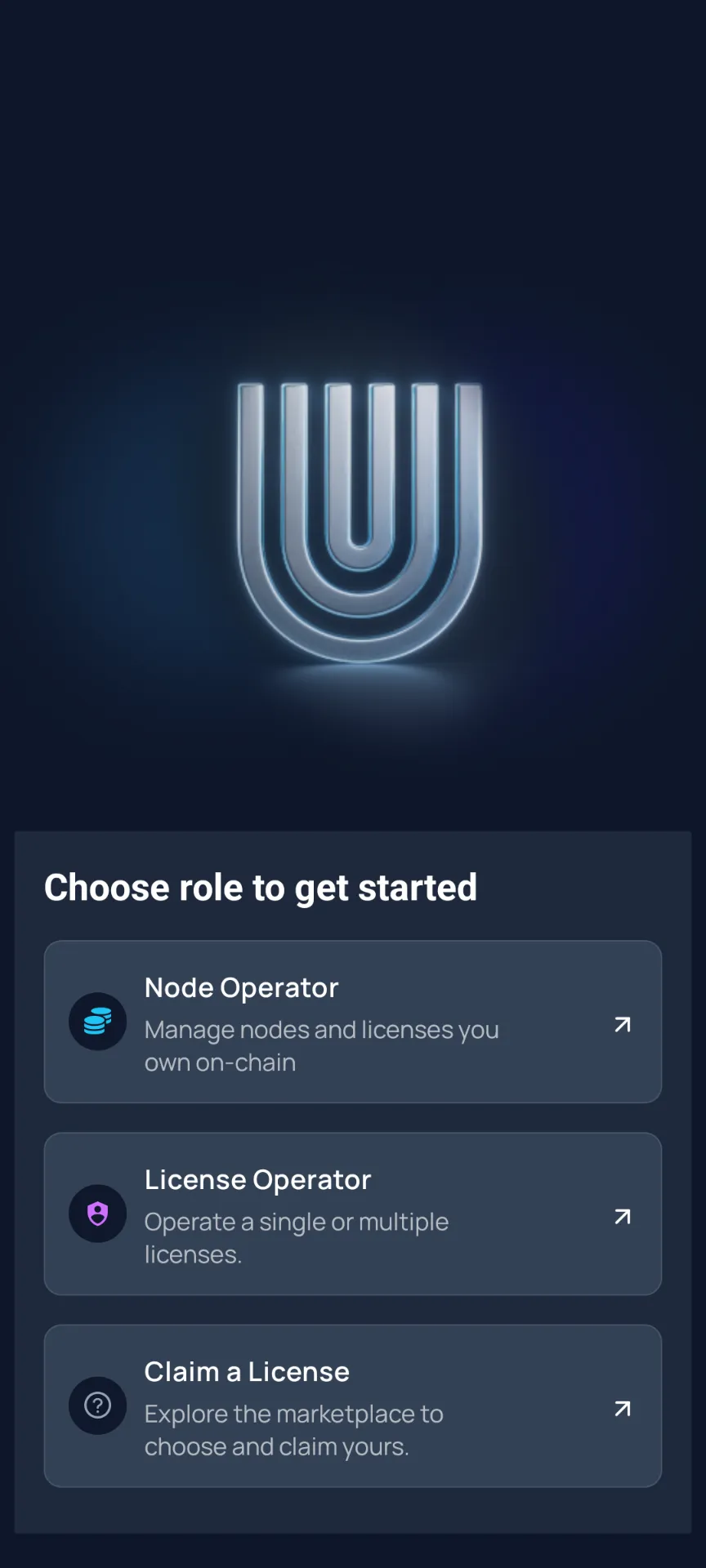
You'll see three role options: Node Operator, License Operator, and Claim a License. Since you have a lease code from Ekata Nodes, select "License Operator" to continue.
License Operator is the correct role for anyone who has received a lease code from a Node Operator like Ekata Nodes.
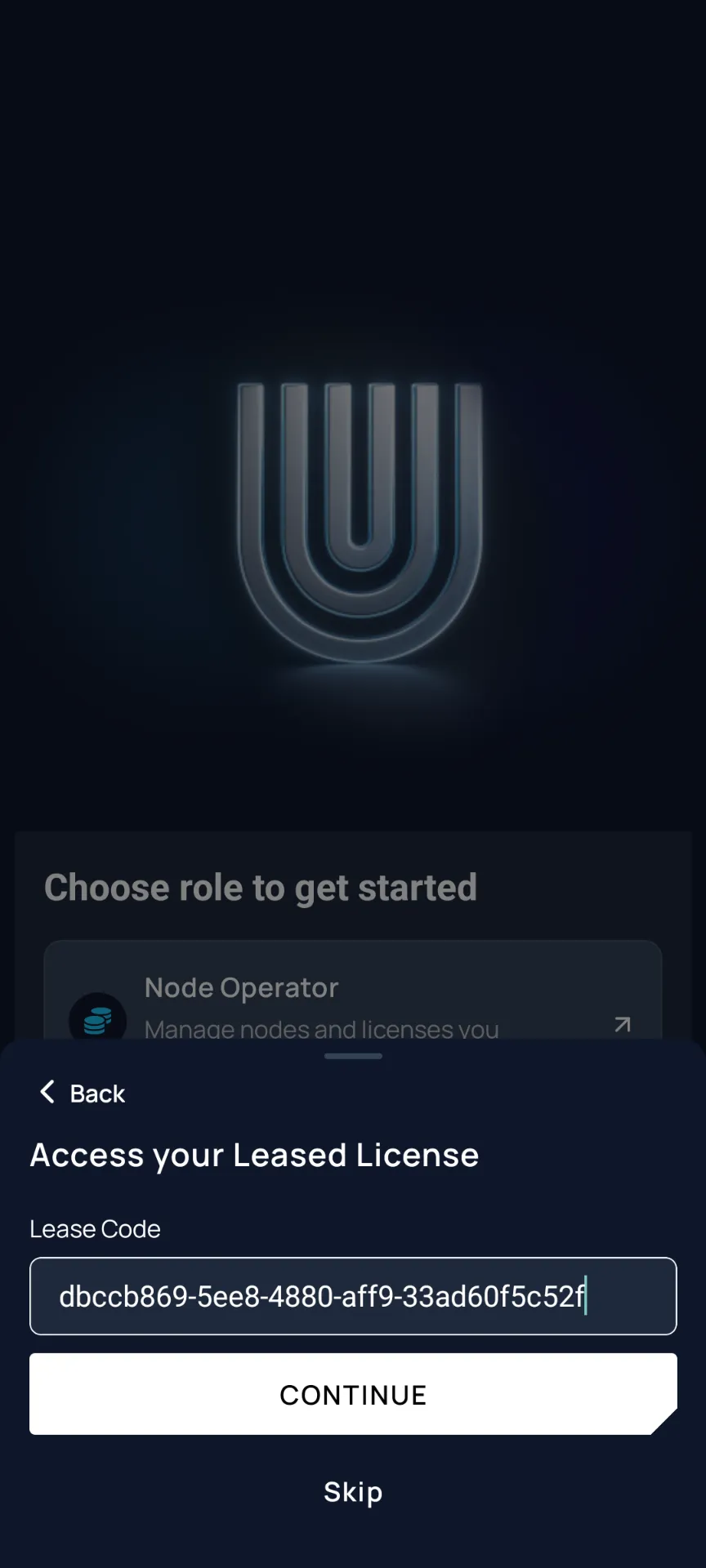
Paste or type your lease code into the field. It will look something like dbccb869-5ee8-4880-aff9-.... Once entered, tap the CONTINUE button to proceed.
Double-check that the entire code is pasted correctly - missing characters will cause an error.
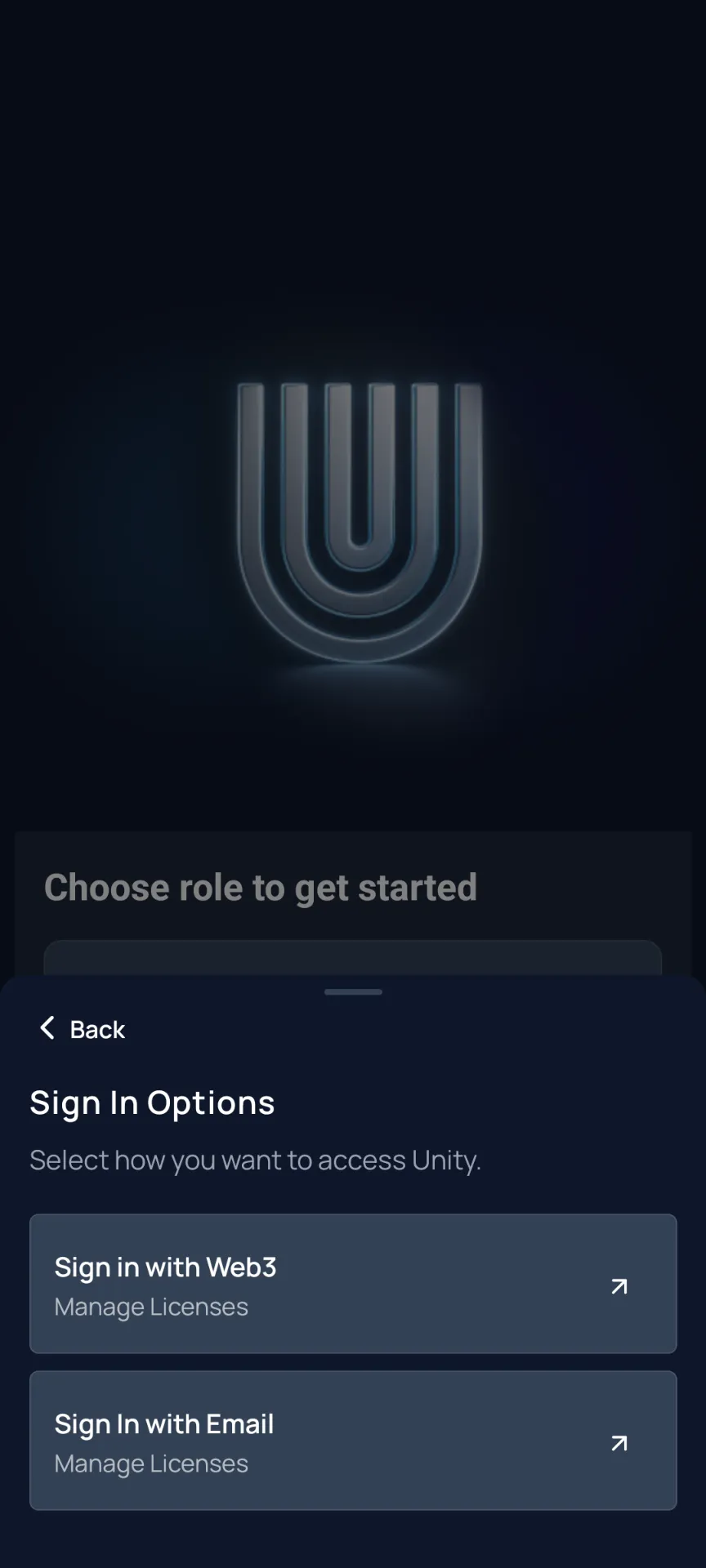
Select Email to sign in with your email address.
Use your email address to create or connect an account
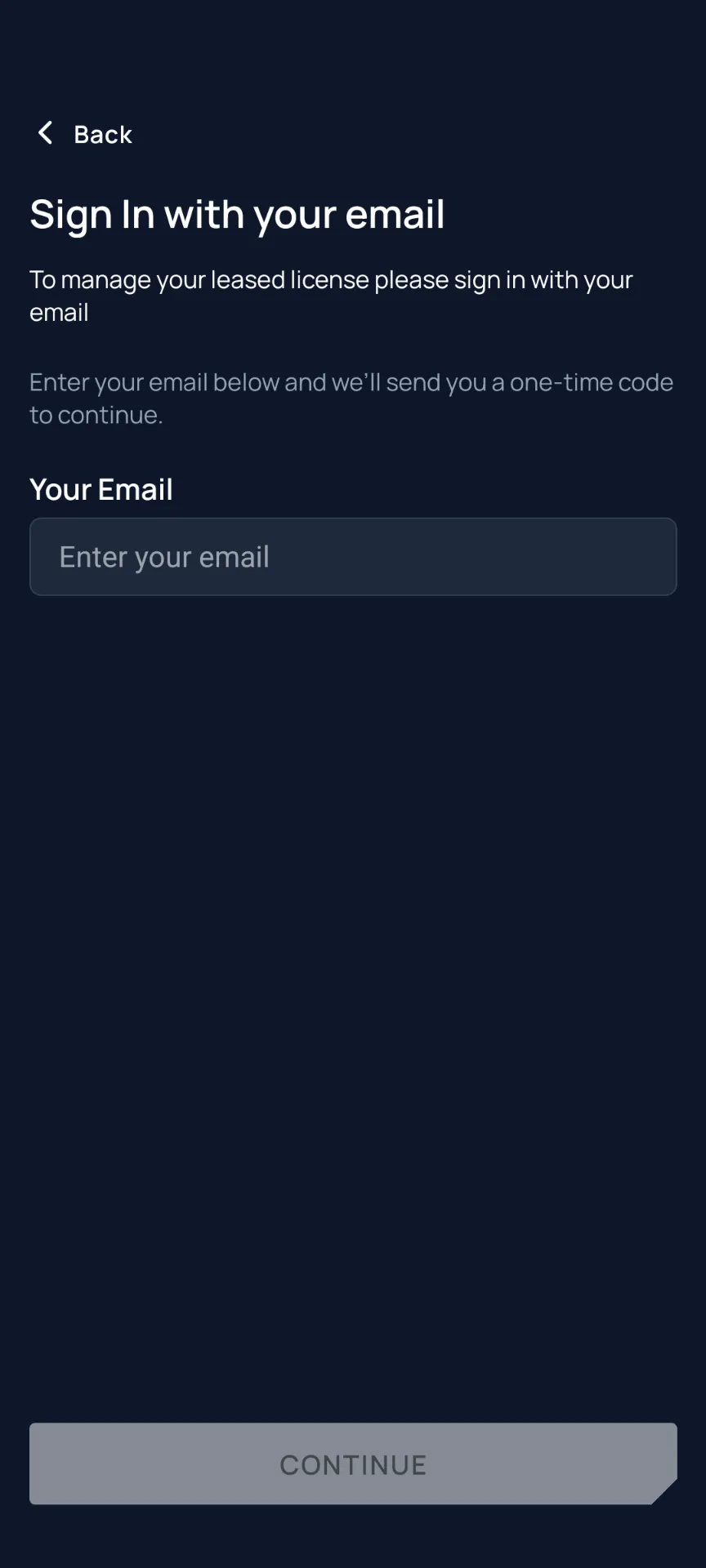
Enter your email address and tap CONTINUE. A one-time verification code will be sent to your inbox.
Use an email you have easy access to - you'll need to check it shortly for the verification code.
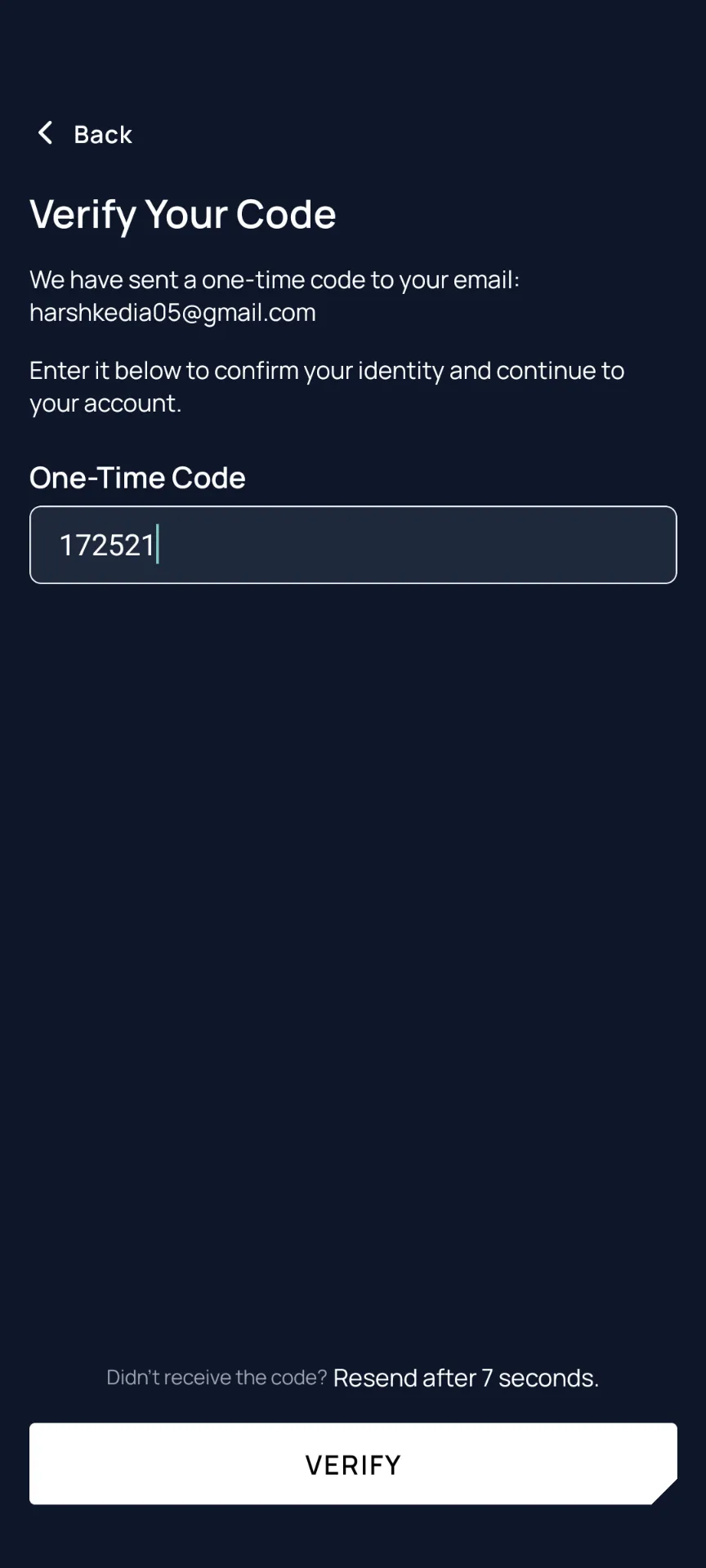
Type the 6-digit code from your email into the One-Time Code field, then tap VERIFY to confirm your identity.
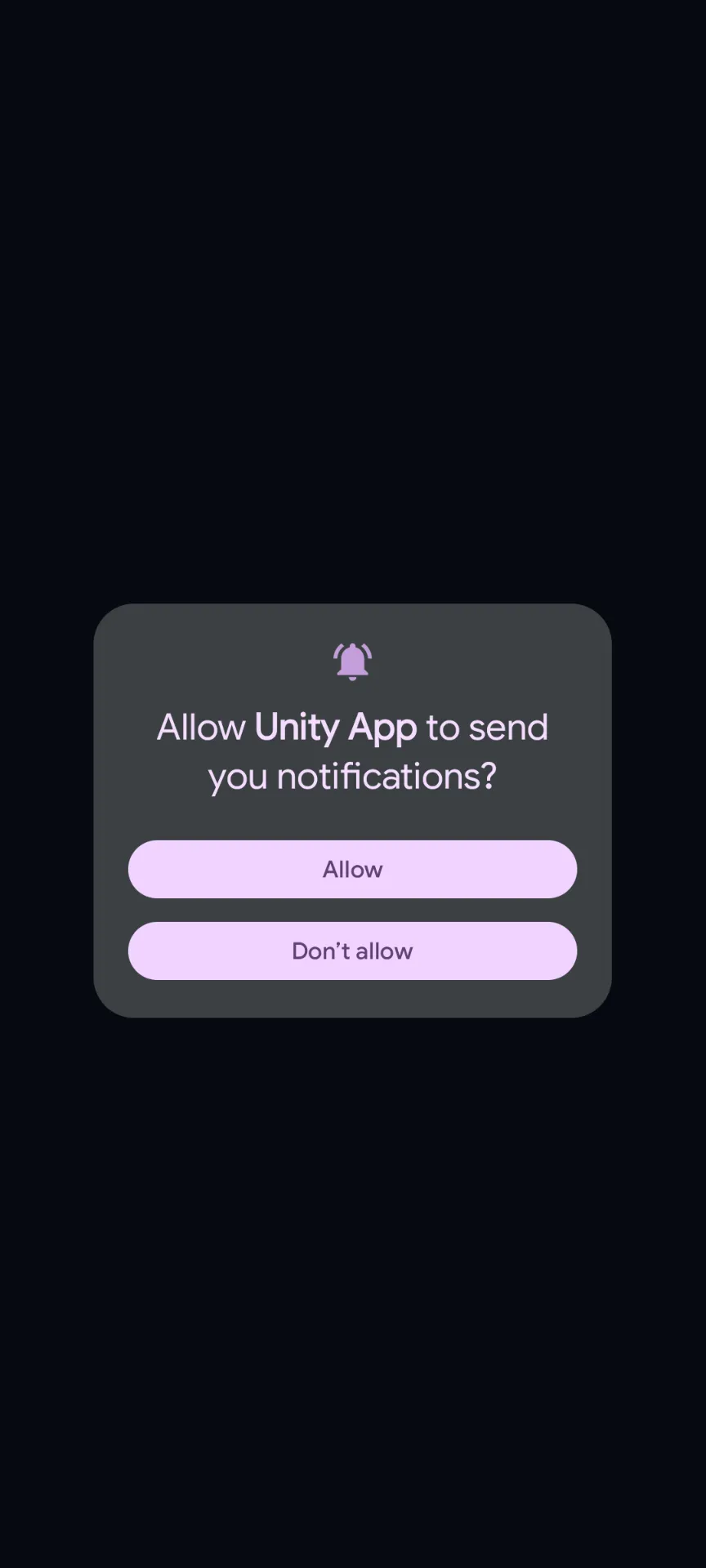
The app will ask permission to send you notifications. Tap Allow so you receive important updates about your license status, rewards, and network activity.
Allowing notifications is recommended so you stay informed about your earnings and any required actions.
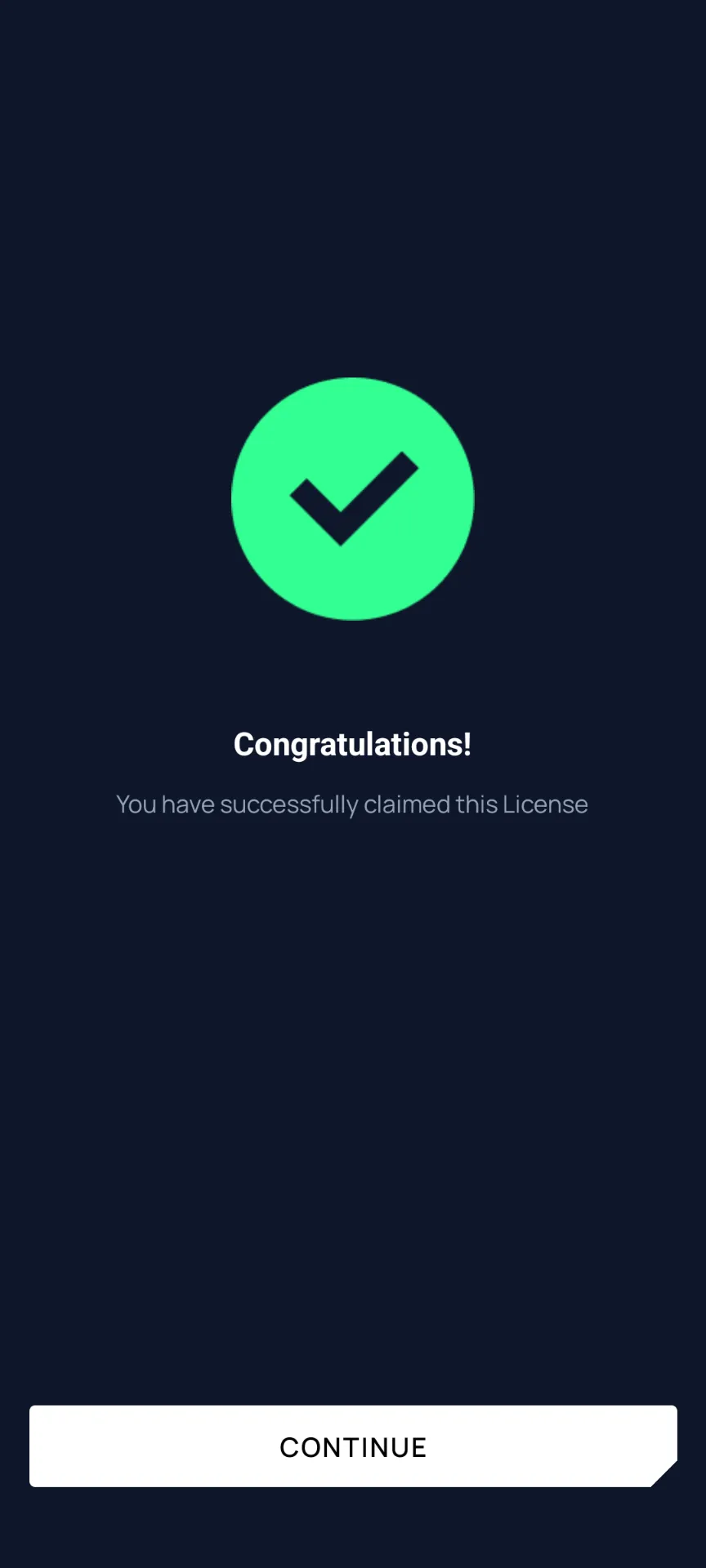
You'll see a Congratulations! screen confirming you have successfully claimed your license. Tap CONTINUE to proceed to your dashboard.
Great job! Your license is now active and linked to your account.
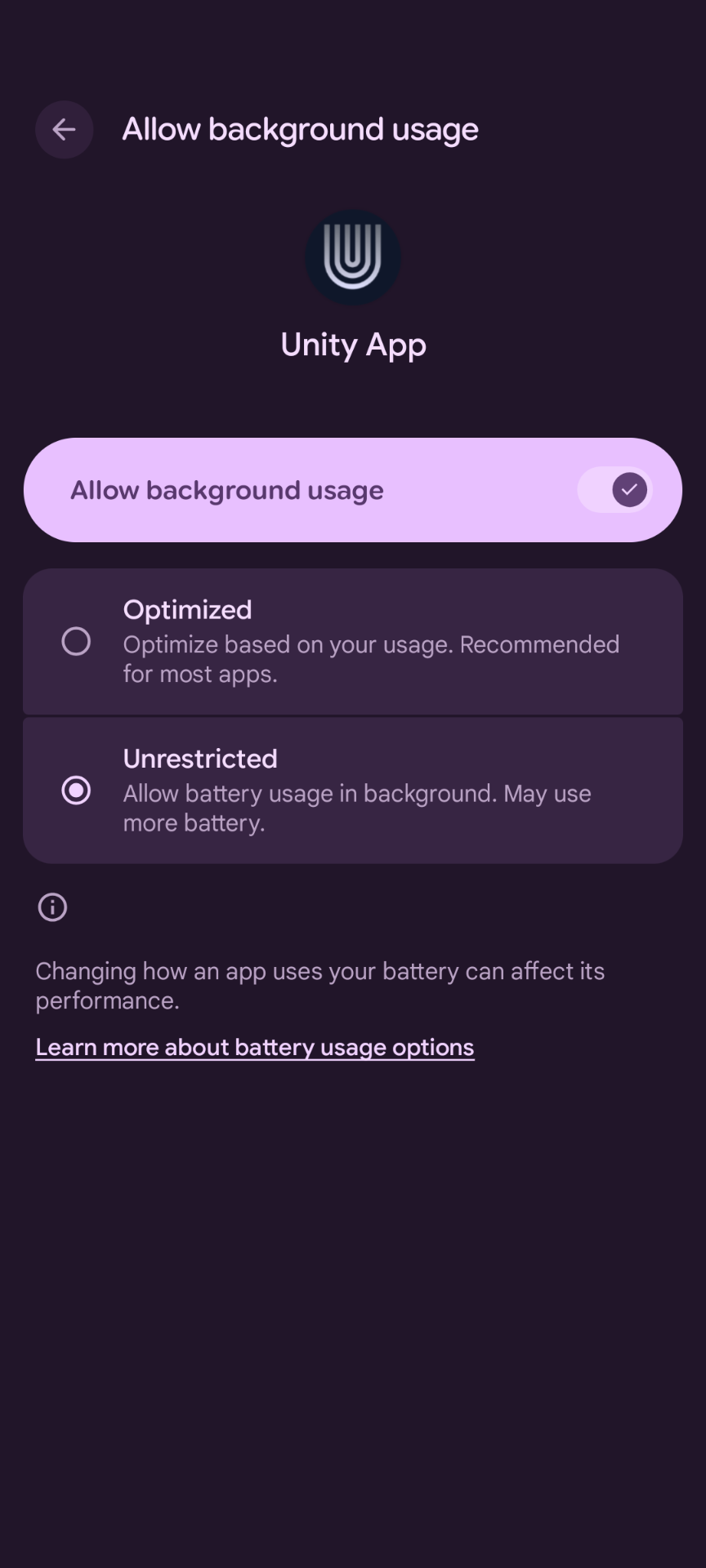
Battery optimization can prevent the Unity app from running in the background, which is critical for earning rewards. Go to your phone's Settings → Apps → Unity → Battery and select Unrestricted to allow the app to run always.
This step is important! If battery optimization is enabled, the app may be killed by your phone's OS, stopping your earnings. Each phone has different settings - look for 'No restrictions' or 'Unrestricted' in your battery settings.
If you run into any issues during setup, our support team is ready to help you get started.